
Note: As an Amazon Associate, I earn from qualifying purchases.
A couple of months ago, I was involved in a traumatic accident where I lost my left hand and broke several bones in my right hand. Since then I’ve been working hard to regain function and relearn how to do basic daily tasks. Much of my job involves writing and typing, so learning to type one-handed was a top priority.
I began researching tools and resources, including one-handed keyboards, to help with this process. While I found a few helpful reviews and articles (which I will link throughout this post), I discovered a big information gap around living and working with an upper extremity amputation. So, I decided to use this space to record some of my experiences living with a sudden disability.
Why Choosing the Correct Keyboard Matters
For some jobs, you could maybe get by pecking out words on a standard keyboard. I work as a full-time email and content marketer, however, and still pick up freelance copywriting jobs on the side. I’ve never been a particularly fast type, but I couldn’t afford to become any slower.
I write newsletters, blogs, and landing pages for 4-5 brands under the umbrella of my parent company, which often translates to 1000+ words a day, not counting emails and messages to my coworkers. My goal was to resume my former workload within 1-2 months of returning to work.
My other concern was health-related. Amputees are at higher risk for RSI since the remaining hand/arm has to compensate for tasks previously done by the amputated limb, so I’m working to reduce strain on my right hand by using the appropriate tools and accommodations.
Types of One-Handed Keyboards
One-handed keyboards can be as simple as a standard keyboard with letters rearranged to limit reaching or more complex like chording keyboards which require the user to learn key combinations to access the full range of letters.
I immediately ruled out chording keyboards because I needed to relearn how to type as quickly as possible and felt intimidated by how different they were from anything I’d used in the past. (You can learn more about chording keyboards on this alternative keyboard page from CU Denver.)
My remaining options included:
- Half-QWERTY: Like its name suggests, a half-QWERTY keyboard uses a standard keyboard layout, but only requires you to use half of the keys. Press the space bar to switch to the other half of your letter keys.
- Maltron single-handed keyboard: A curved ergonomic keyboard designed for one-handed use. It’s shaped a bit like a half-pipe to limit reaching and is designed to incorporate the thumb in typing.
- TiPY keyboard: The Tipy keyboard is a curved keyboard that lays flat and incorporates a mouse at the base.
- BeeRaider keyboard: Keys are laid out in a radial format. Not specifically designed for one-handed typing, but it is compact and supposedly allows for faster one-handed and two-handed typing.
- Compact standard keyboard: A 60% or 75% layout can help reduce strain and reaching and are available from many common brands.
How to Choose a One-Handed Keyboard
My top considerations for choosing a keyboard were:
- Cost
- Learning difficulty, and
- Ability to switch between keyboards/computers.
Adaptive equipment is frequently quite expensive, and in addition to buying tools for work, I’ve also had to adapt my home, wardrobe, fitness routine, car, and more to my new limitations. Spending hundreds of dollars on a new keyboard was out of the question.
Maltron keyboards start at around $500, TiPY keyboards can easily cross $1000, and a half-QWERTY is about $600. That being said, they are specifically designed for one-handed use and may be worth the price if it’s within your budget.
(If you’re keeping track, that leaves the BeeRaider and compact standard keyboards.)
The BeeRaider checked a lot of boxes for me as a one-handed keyboard that only cost about $150. It was still a completely new layout I’d have to learn and adapt to, however. Plus, anytime I needed to travel for work or use someone else’s computer, I’d either have to bring my own keyboard (BYOK?) or try to get by on a standard keyboard. I also couldn’t find reviews or testimonials from single-handed users.
Ultimately, I decided a compact standard keyboard would be the best choice since it would have the smallest learning curve and not require me to haul around a specialty keyboard.
Dvorak Keyboard Layout
The other deciding factor for me was the discovery that most computer operating systems come with a built-in single-handed layout called Dvorak right-handed (or left-handed) that can be used with a standard keyboard. Dvorak is designed to be more ergonomic and reduce finger motion by placing frequently used keys within easy reach.
Right-handed Dvorak takes things one step further by moving your number row to the left, so all your letter keys can be reached with minimal stretching. (See below.)
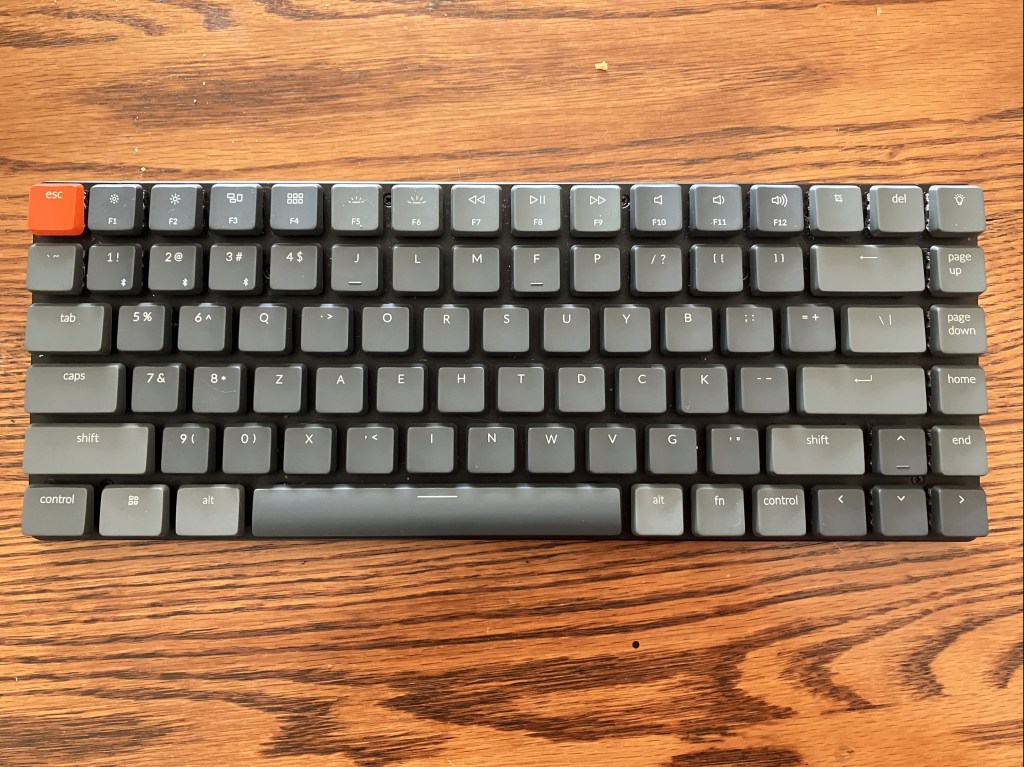
I decided to try to learn to type using this one-handed layout, figuring that if I hated it, I could always switch back to QWERTY. (Spoiler alert: I didn’t.) Navigate to your Language and Region settings, and click Add a Keyboard to try it out for yourself. This free typing exercise will help you get familiar with the layout.
Recommended Compact Keyboard
While shopping for a keyboard, I came across two helpful articles from other upper limb amputees. The first is this Wired article that discusses considerations like key height and keyboard positioning, while the second is by a one-handed writer, named Britt Young, who uses the Dvorak layout.
Young explains what to look for in a keyboard if you want to switch from QWERTY to Dvorak. For example, you’ll want flat keycaps rather than curved ones so you can easily reposition them. Her top choice was a keyboard she customized to get the look and feel she wanted, but I use the Keychron K3 she discusses in the article. The keycaps were easy to rearrange, and the price was fairly reasonable.
If you want to try Dvorak, but don’t want to purchase a mechanical keyboard, you can buy keycap stickers through Amazon that allow you to convert any keyboard. I used these stickers to convert my laptop to Dvorak though I still usually pair it with my external keyboard.
 Page Writing Pages LLC
Leave a comment